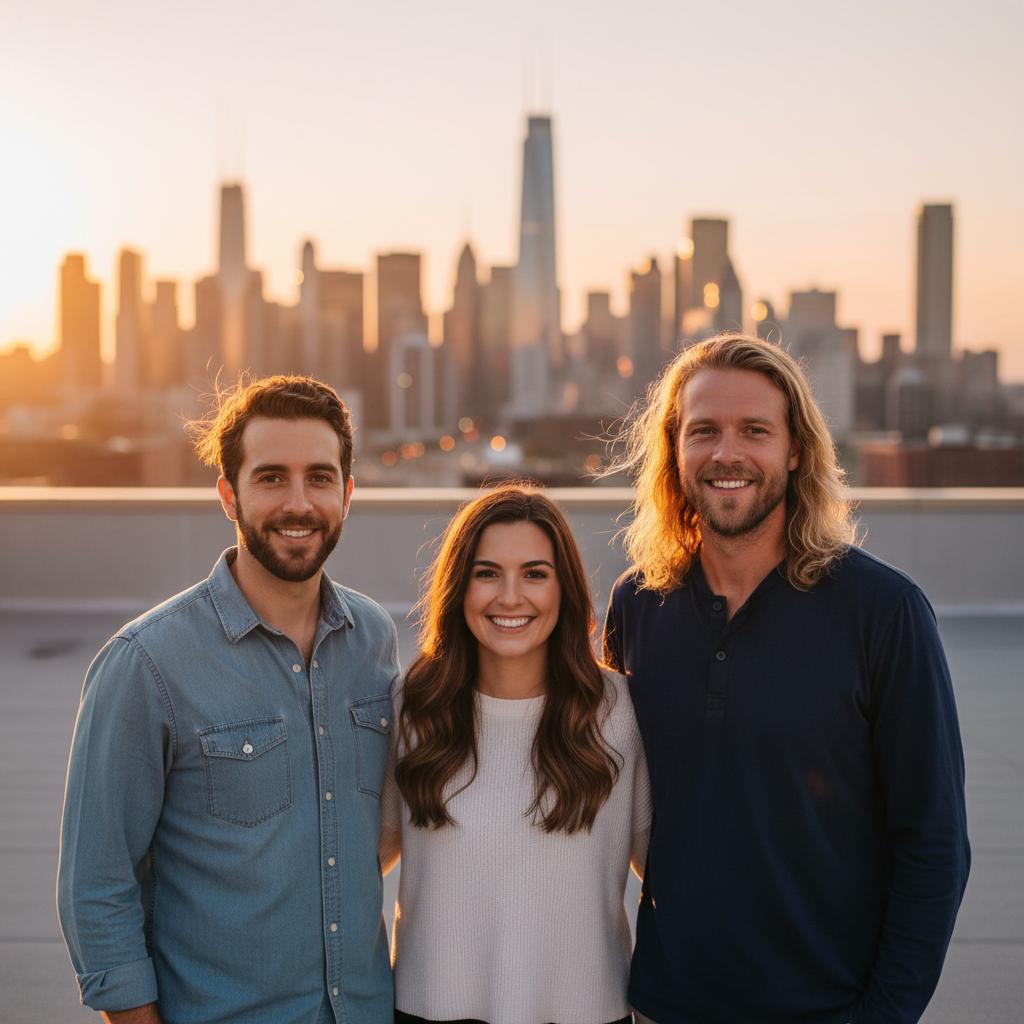
A practical guide for “merge photos into one”
The app creates a new composition rather than pasting faces onto an existing image.
Three scenes that fit this idea
Golden hour rooftop
Warm light flatters most portraits.
Family porch
A relaxed setting works across ages.
Studio neutral
Clean backgrounds keep focus on people.
Choose source photos the model can read
TogetherLens creates a new composition from the people you provide. It does not need matching backgrounds, but it does need clear facial information. Start with the original file when possible rather than a screenshot downloaded from a social network or messaging app.
- One clear solo portrait per person
- Keep each face fully visible and ask every living person for permission.
Generate in three deliberate steps
- Add the selected portraits.Check the group limit in your current app version. Use one clear, permissioned portrait per person and review every crop.
- Choose one or two vibes.Pick a scene that supports the story instead of competing with the faces.
- Inspect the result.Check eyes, teeth, hands, clothing, jewelry, and meaningful background details before sharing or printing.
TogetherLens is free to install. Photo generation uses paid tokens; Premium is optional and auto-renewing. Check current local prices, included tokens and renewal or cancellation terms in the app before buying.
What to avoid
- Claiming the output is an original photograph
Generated photos are creative images, not documentary evidence. Disclose that the result is AI-generated when context matters, and never use someone’s face to impersonate, embarrass, or mislead.
Questions about this portrait
How do I merge photos into one?
Install TogetherLens, select each portrait, choose a scene, then generate.
How many can I merge?
Two to five per generation.
Is it free?
TogetherLens is free to install on iPhone and Android. Photo generation uses paid tokens. Premium is optional; your app store shows available purchase options, prices and any renewal terms before purchase.