A practical guide for “add a person to a picture”
The app creates a new group image rather than editing an existing photograph.
Three scenes that fit this idea
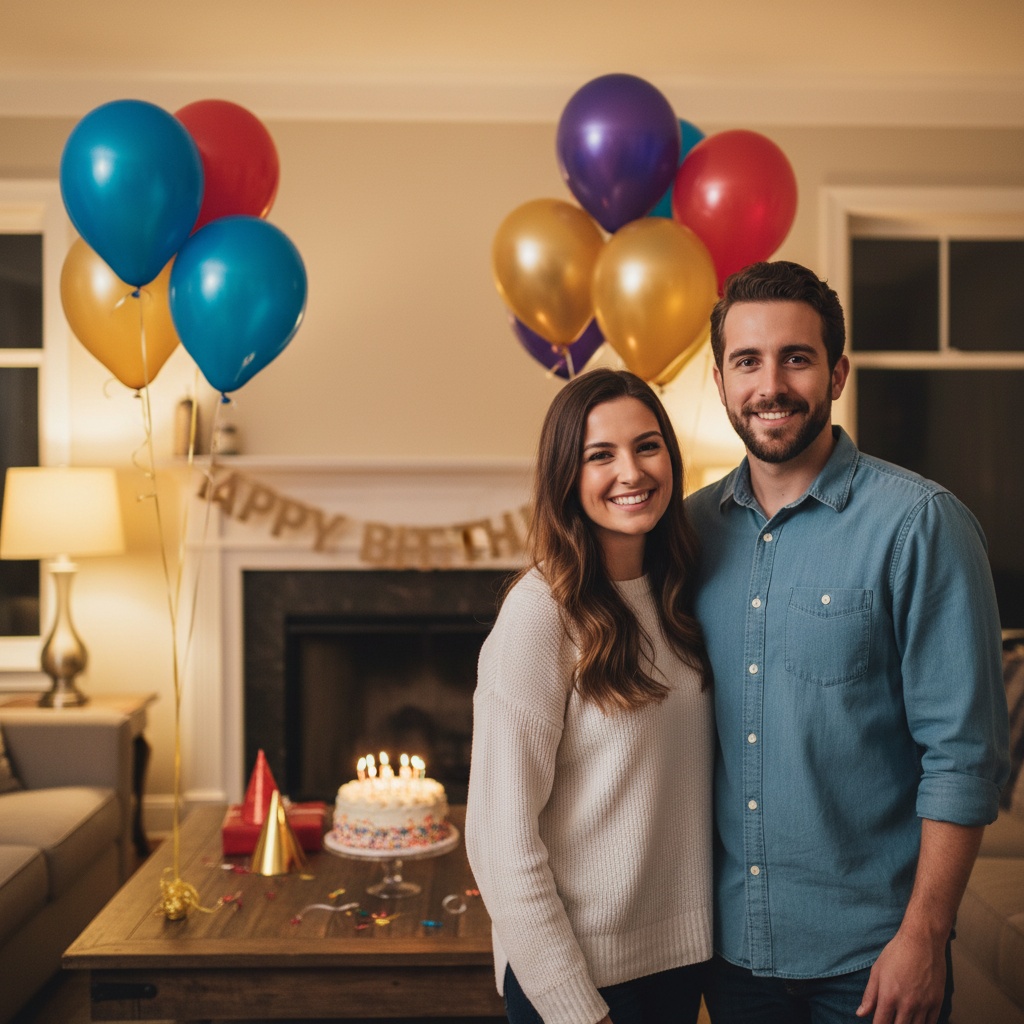
Birthday party
A cake and warm indoor light explain why everyone is together.
Holiday dinner
Seasonal settings work for family groups.
Outdoor picnic
Casual framing tolerates varied outfits.
Choose source photos the model can read
TogetherLens creates a new composition from the people you provide. It does not need matching backgrounds, but it does need clear facial information. Start with the original file when possible rather than a screenshot downloaded from a social network or messaging app.
- Use a solo head-and-shoulders shot of the missing person
- Keep each face fully visible and ask every living person for permission.
Generate in three deliberate steps
- Add the selected portraits.Check the group limit in your current app version. Use one clear, permissioned portrait per person and review every crop.
- Choose one or two vibes.Pick a scene that supports the story instead of competing with the faces.
- Inspect the result.Check eyes, teeth, hands, clothing, jewelry, and meaningful background details before sharing or printing.
TogetherLens is free to install. Photo generation uses paid tokens; Premium is optional and auto-renewing. Check current local prices, included tokens and renewal or cancellation terms in the app before buying.
What to avoid
- Claiming the result is documentary evidence
Generated photos are creative images, not documentary evidence. Disclose that the result is AI-generated when context matters, and never use someone’s face to impersonate, embarrass, or mislead.
Questions about this portrait
How do I add a person to a picture?
Open TogetherLens, select their portrait plus 1–4 others, choose a scene, and generate.
Is it free?
TogetherLens is free to install on iPhone and Android. Photo generation uses paid tokens. Premium is optional; your app store shows available purchase options, prices and any renewal terms before purchase.