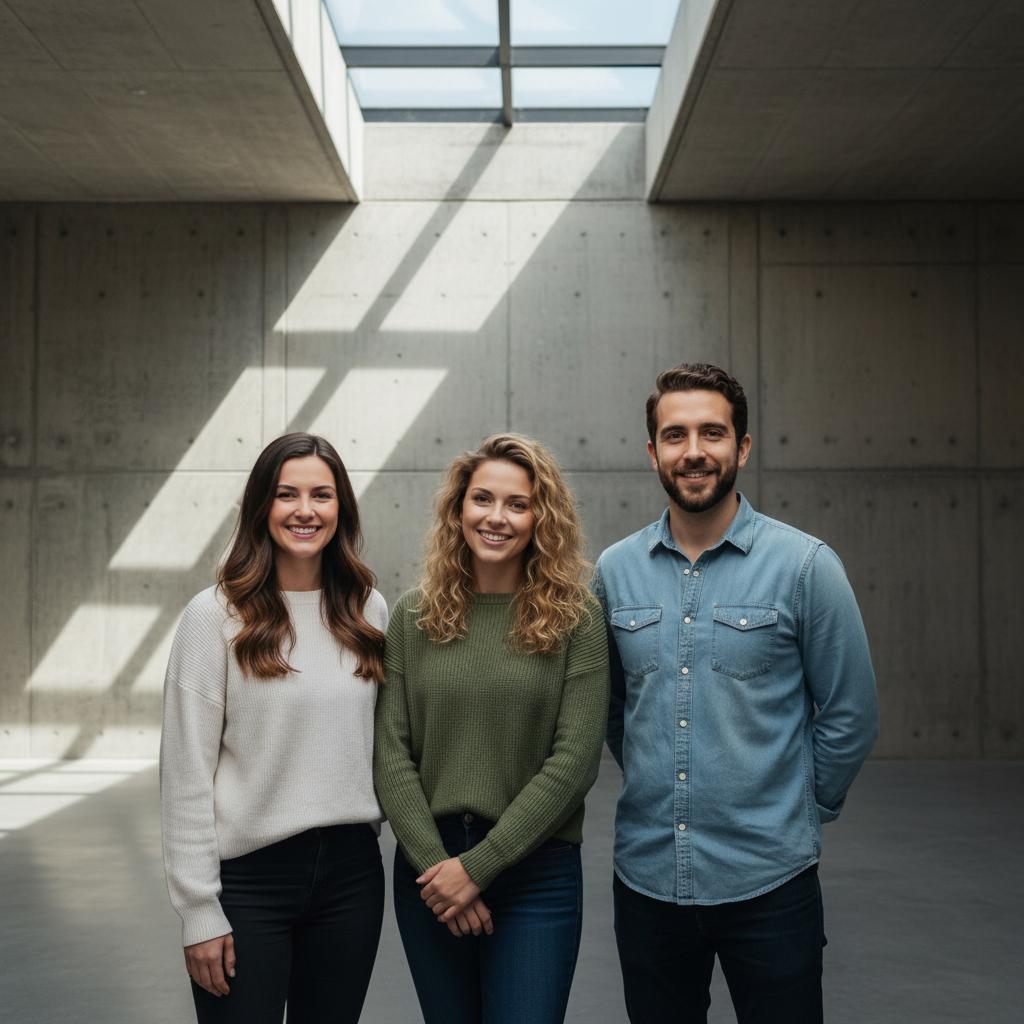
A practical guide for “AI team photo generator for remote employees”
The five-minute answer
How to create an AI team photo from individual headshots
- Agree on the use.Decide whether the image is for a website, presentation, or internal page, and get approval from everyone pictured before collecting portraits.
- Choose two to five headshots.Use current, permissioned images with faces, hair, and shoulders visible and a similar level of formality.
- Generate, review, and label.Check every likeness, crop, and scene together. Keep a real photograph for official records and identify the generated result where context matters.
Need an employee record or ID photo? Use a real photograph for identity, employment, or event evidence. TogetherLens is for a consented creative team visual, not a documentary record.
A small distributed team can need one shared visual before everyone can travel to the same studio. TogetherLens creates a new composition from separate, permissioned headshots; it does not document a real meeting or replace an employee record photo.
Choose the use before collecting images. A website hero, pitch deck, and internal team page may need different crops and levels of formality, so agree on the intended context with everyone pictured before generating.
Keep the group to two to five people, review every likeness and crop together, and label the result as AI-generated wherever a viewer could mistake it for a real company event.
Three scenes that fit this idea
Modern office atrium
A clean architectural background gives a distributed team one shared professional setting without adding busy props.
Clean studio
Neutral light and a simple background make faces easier to compare in an About or team page grid.
Rooftop after work
A relaxed skyline works for an employer-branding or social image when a formal headshot set feels too stiff.
Choose source photos the model can read
TogetherLens creates a new composition from the people you provide. It does not need matching backgrounds, but it does need clear facial information. Start with the original file when possible rather than a screenshot downloaded from a social network or messaging app.
- Use one current, permissioned headshot per teammate.
- Keep faces, hair, and shoulders visible with even lighting.
- Match the intended level of formality across the source set.
- Keep each face fully visible and ask every living person for permission.
Generate in three deliberate steps
- Add the selected portraits.Check the group limit in your current app version. Use one clear, permissioned portrait per person and review every crop.
- Choose one or two vibes.Pick a scene that supports the story instead of competing with the faces.
- Inspect the result.Check eyes, teeth, hands, clothing, jewelry, and meaningful background details before sharing or printing.
What to avoid
- Using the result as an employee badge or identity record
- Implying a real offsite or meeting took place
- Publishing before every pictured teammate approves the context
Generated photos are creative images, not documentary evidence. Disclose that the result is AI-generated when context matters, and never use someone’s face to impersonate, embarrass, or mislead.
Questions about this portrait
Can AI create a team photo from separate headshots?
Yes. Choose one clear, permissioned headshot for each of two to five teammates in TogetherLens, pick a shared professional scene, then review the new composition together before public use.
Can remote employees appear in one AI team photo?
Yes. Create an AI team photo from separate headshots for two to five remote employees, choose a shared scene, and have everyone review and approve the generated result before public use.
How do I create an AI team photo from individual headshots?
Open TogetherLens on iPhone or Android, choose one clear, permissioned headshot for each of two to five teammates, pick a shared professional scene, then generate and review the new team composition together.
Can I make a virtual team photo for our website?
Yes, for a consented creative use. Review every likeness and crop, make sure the pictured people approve the public context, and label the result as AI-generated when it could be mistaken for a real team event.
How many people can be in one AI team photo?
TogetherLens supports two to five people in one shared composition. For a larger company, use smaller clearly labeled groups instead of forcing everyone into one result.
Is an AI team photo suitable for an employee ID or official record?
No. Use a real photograph for an employee badge, employment record, identity check, or proof that a company event happened.
Do remote teammates need matching backgrounds?
No. TogetherLens uses the individual portraits to compose a new shared scene, so the source backgrounds can differ.