TogetherLens result · 22 seconds
Four separate portraits. One group photo.
See the finished garden wedding portrait alongside the four photos that TogetherLens used to create it.
Try the same four photosShow example link
Try the same four portraits.
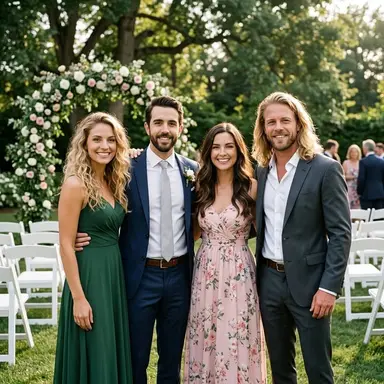
Save these fictional sample photos, choose Wedding • Garden Ceremony Arch in TogetherLens, then add one photo per person.
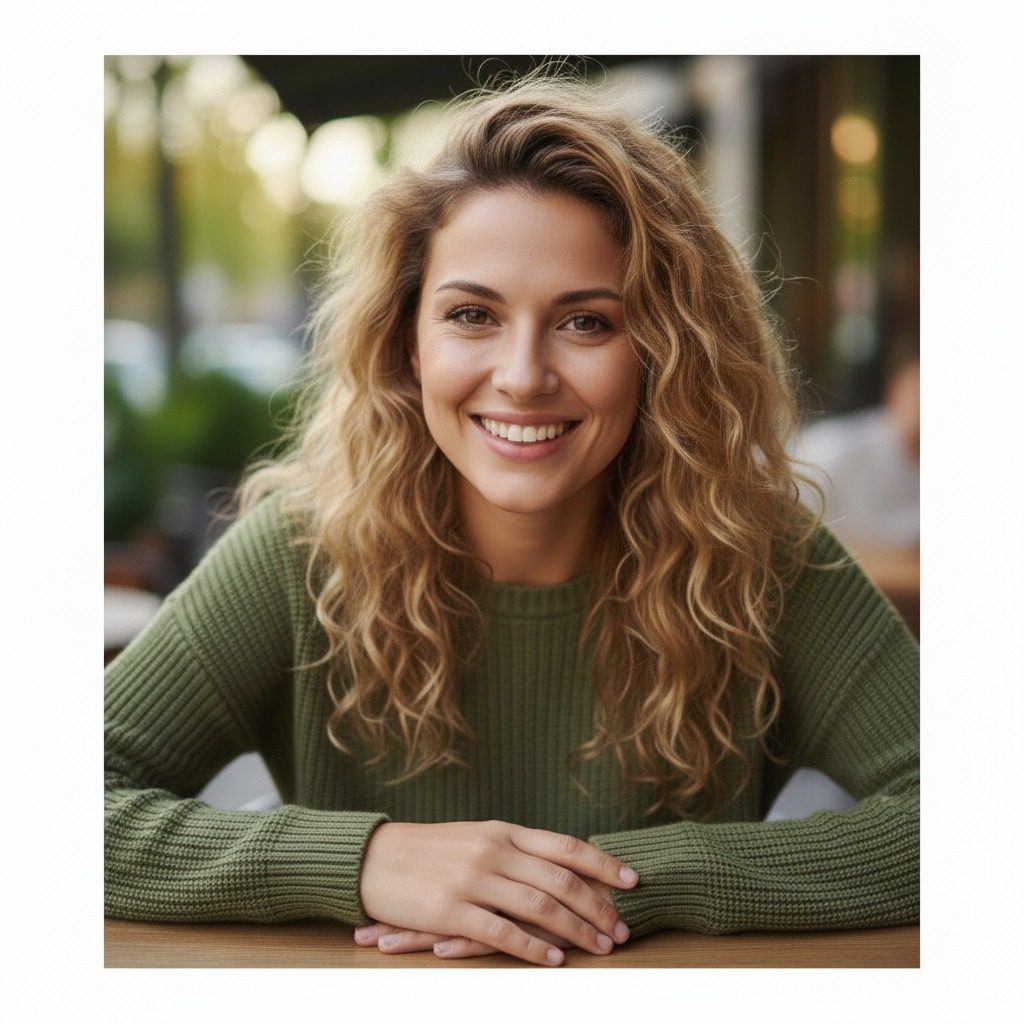 Save photo 1
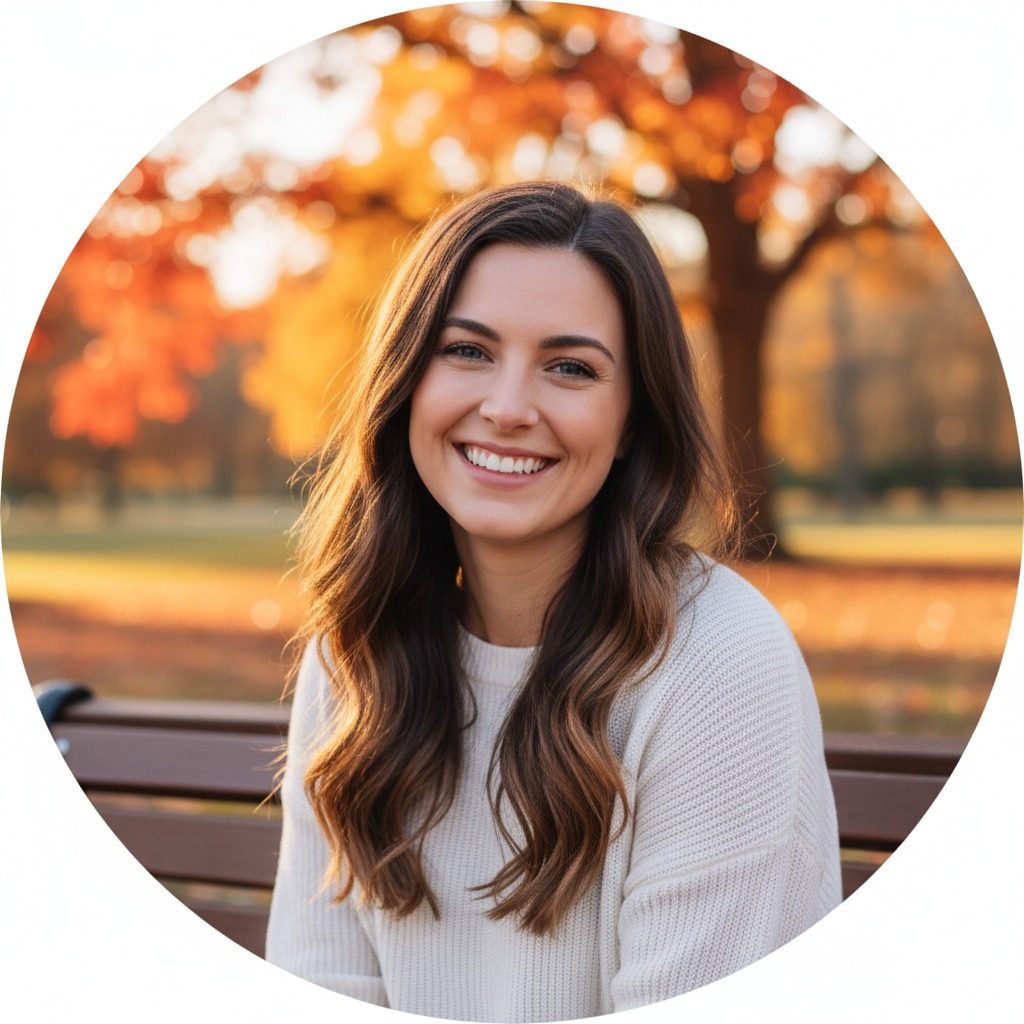 Save photo 2
 Save photo 3
 Save photo 4
Download all four photos (ZIP)
On iPhone, open each downloaded JPEG in Files → Downloads, then tap Share → Save Image to add it to Photos. If you downloaded the ZIP, unzip it in Files first.
Open TogetherLens to choose the scene and add your saved photos.
Free to install. Photo generation uses paid tokens. Use your own portraits with permission and review the AI result before sharing.

Make a free postcard with this portrait
Read the timed English guidance
- 00:00 Four separate example portraits and their finished TogetherLens group photo.
- 00:05 Separate Android 1.6.1 setup recording. Choose a scene for your group photo.
- 00:09 Separate Android setup recording. Add one clear portrait per person.
- 00:13 Android 1.6.7 screen. Browse styles by category.
- 00:17 The finished AI group photo. TogetherLens used the four portraits shown.